Assistant
Set the tone and answer length
Tone and length change how answers sound, never where they come from. Every answer is still built only from your sources, with citations.
Four steps
Open the Assistant page
Choose Assistant in the sidebar. Voice is the first section.
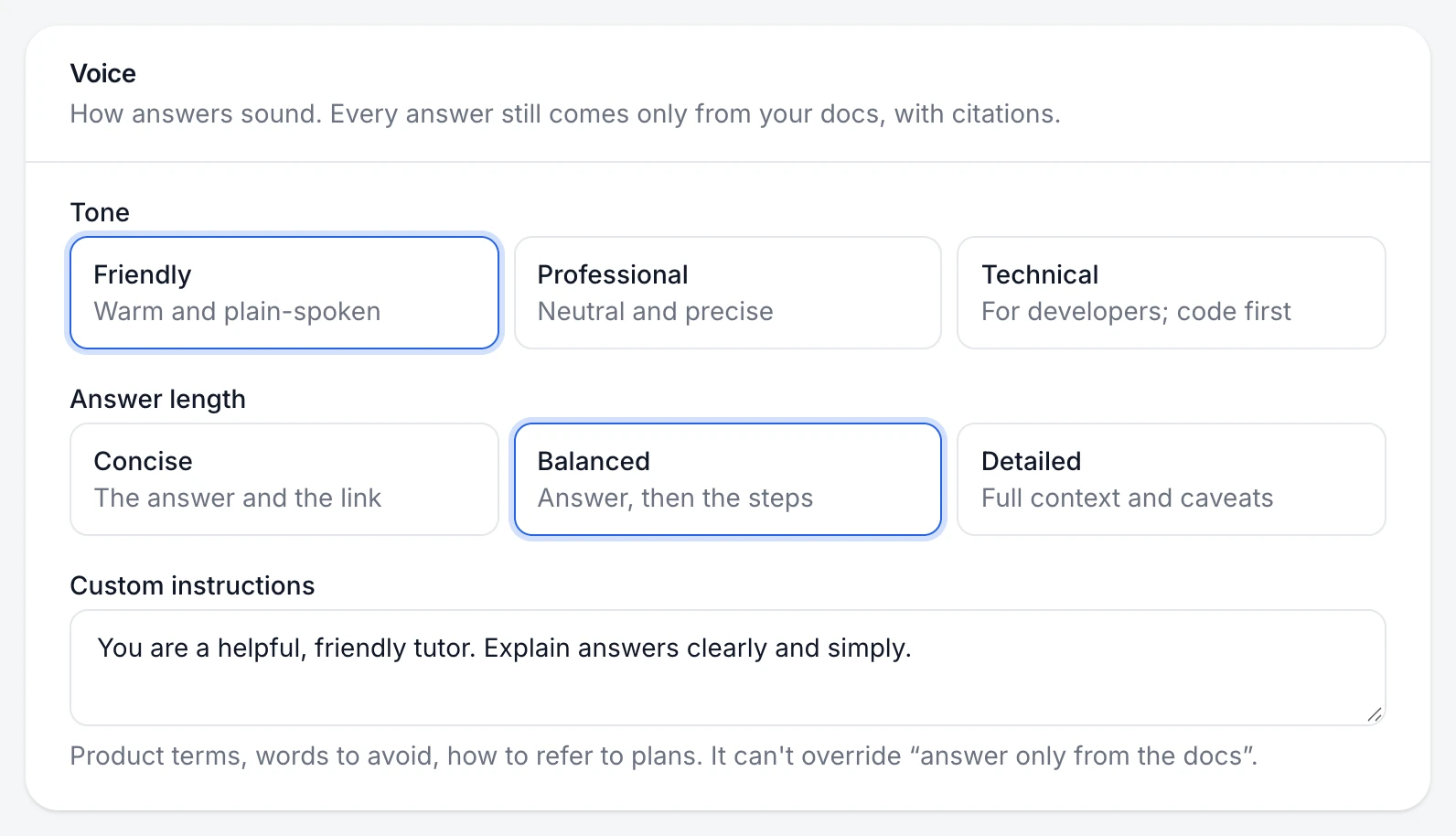
Choose a tone
Tone Sounds like Friendly Warm and plain-spoken Professional Neutral and precise Technical For developers; code first Choose an answer length
Length What customers get Concise The answer and the link Balanced Answer, then the steps Detailed Full context and caveats Save and test
Choose Save changes, then ask the same question in the Playground to hear the difference.
You're done when
Answers in the playground sound the way you'd write them yourself.
If something's not right
Answers are still too long
Choose Concise, and add a line to custom instructions such as "Answer in three sentences or fewer."
Was this helpful?